Toolkit Operation
The operation of the vulnerability assessment toolkit is described in terms of the functionality available to the user.

1. Menus

The user can control the operation of the toolkit using the following menu item options:

File Menu

  • New – clears all information of current network.
  • Exit – ends the process and disposes of the thread.

Define Menu

  • Key Analysis – network will only contain nodes and keys
  • Link Analysis – network will also contain one-hop links
  • Route Analysis – network will also contain routes
  • Key Type – type of cryptographic primitives will be used throughout the network
    • Basic – random symmetric key predistribution
    • Polynomial – threshold-sharing scheme based on assignment of polynomial share to each network node
    • Hybrid – random predistribution using shares of multiple polynomials
    • Broadcast – unique broadcast key for each node, known by all neighbors
    • Public Key – unique public key for each node with corresponding private key
  • Key Deployment – determines how keys are randomly assigned (basic and hybrid only)
    • Random (binomial) – unconstrained random assignment of keys to nodes
    • Pulse – random assignment with constrained number of nodes sharing each key
  • Privacy Preserving Set Intersection Protocol – the key exchange protocol hides key IDs used, so that the adversary can only determine the total number of keys a node has and which keys it has in common with it
  • Traffic type – determines the type of data that is used throughout the network, implying the primary network purpose
    • Data Collection (min sinks) – multiple sources send to a few designated hubs that may have additional resistance to compromise
    • Data Distribution (min sources) – a few designated hubs that may have additional resistance to compromise send to multiple sinks
    • Peer Activity (symmetric) – homogenous network with multiple source-sink pairs
  • Flow Deployment – determines how the route destination is determined (data collection and distribution only); routing is based on lowest hop count
    • Route to closest sink (or from closest source) – traffic goes to/from closest hub
    • Route to/from random target – picks a random hub to connect to
  • Routing Type – determines special types of routing. Typical routes are secured on a per-hop basis
    • Multipath – each next hop is chosen randomly from a set of closer nodes
    • Dependent – all paths from source to destination must be compromised in order to compromise the route
    • End-to-End – an additional secure link is formed between the source and sink, if possible

Action Menu


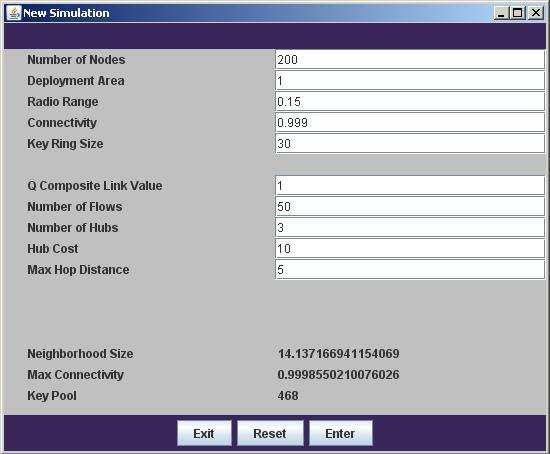
  • Construct Network - Pops up a “New Simulation” box, which allows the input of additional network parameters before construction of the network, as shown below.
    • Number of Nodes – number of nodes to deploy
    • Deployment Area – size of square network area
    • Radio Range – all nodes within this distance can communicate
    • Connectivity – probability of network being fully connected using secure links
    • Key Ring Size – number of keys given to each node
    • Polynomial Threshold – number of polynomial shares that need to be compromised before compromising the key
    • Q Composite Link Value – requires that nodes share at least this number of keys to develop a secure link
    • Number of flows – number of source-sink pairs in network
    • Number of hubs – hubs used in data collection or data distribution
    • Hub cost – additional cost of capturing hubs, due to physical resistance to compromise (other nodes have a cost of 1)
    • Max Hop Distance – upper bound on route length
    • Multipath Spread Per Hop – maximum number of next hops in multipath routing
    • Neighborhood Size – the expected number of neighbors for each node with the given parameters
    • Max Connectivity – the probability of connectivity for the given parameters
    • Key Pool – total number of keys required for the given parameters


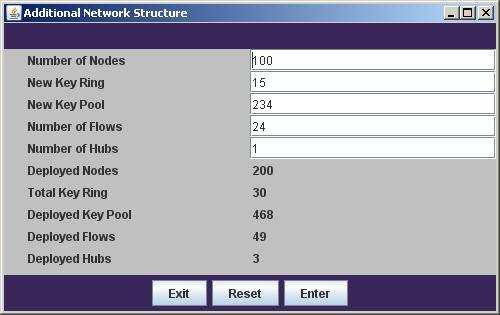
  • Deploy Additional Nodes – pops up “Additional Network Structure” box, which allows the deployment of additional nodes and flows
    • Number of Nodes – number of new nodes to deploy
    • New Key Ring – key ring size for newly deployed nodes
    • New Key Pool – number of new keys deployed into the network
    • Number of Flows – number of new source-sink pairs
    • Number of Hubs – number of new hubs
    • Deployed Nodes – total number of nodes already deployed in network
    • Total Key Ring – total allowable key ring for nodes
    • Deployed Key Pool – number of keys currently deployed
    • Deployed Flows – number of source-sink pairs currently deployed
    • Deployed Hubs – number of hubs currently deployed

DISPLAY MENU

This menu offers a list of options to control appearance of nodes, links, and routes.
  • Attacked Nodes – nodes that have been previously attacked (goldenrod)
  • Selected Nodes – node currently selected for attack (magenta) and other nodes whose keys will all be compromised on this attack (red)
  • Compromised Nodes – nodes whose keys have been all compromised (brown)
  • Uncompromised Nodes – nodes who have uncompromised keys (blue for normal nodes, cyan for hubs)
  • Selected Links – links that will be compromised with this attack (red)
  • Compromised Links – previously compromised links (yellow)
  • Uncompromised Links – secure links (black)
  • Selected Routes – routes that will be compromised with this attack (purple)
  • Compromised Routes – previously compromised routes (grey)
  • Uncompromised Routes – secure routes (green)
  • Increase Node Size – increase node display radius
  • Decrease Node Size – decrease node display radius
  • Apply – apply all changes (equivalent to clicking on canvas)

2. Canvas

The title "Network Simulator (***, ***)” is updated to track the position of the cursor on the canvas.The network is confined to x and y pixel coordinates in [0, 600]. Left-clicking on the canvas will select the nearest uncompromised node for attack.
 

3. Textbox

The first several lines in the text-box describe the major parameters used to construct the network. The “Current Network State” shows the number of compromised nodes and their aggregate cost, as well as the fractions and percentages of compromised keys, nodes, links, traffic, and routes. The “Selected Attack” shows that the state of the network would be if the currently selected node is compromised, including the location of the selected node and the cost incurred by the corresponding attack.
 

4. Buttons

A collection of buttons at the bottom of the display provide additional actions to the user.
  • Reset – reset the adversary’s attack, returning all nodes to uncompromised state
  • Undo – cancels the current selection
  • Compromise – compromises the currently selected node
  • Random – selects a random node
  • Key – selects the node whose capture will compromise the greatest number of keys per unit cost
  • Link – selects the node whose capture will compromise the greatest number of links per unit cost
  • Traffic – selects the node whose capture will compromise the greatest quantity of network traffic per unit cost
  • Route – selects the node whose capture will compromise the greatest number of routes per unit cost
  • Multiple – pops up a box that allows the selection and capture of multiple nodes according to one of the previous five attack metrics